Creating the accommodation #
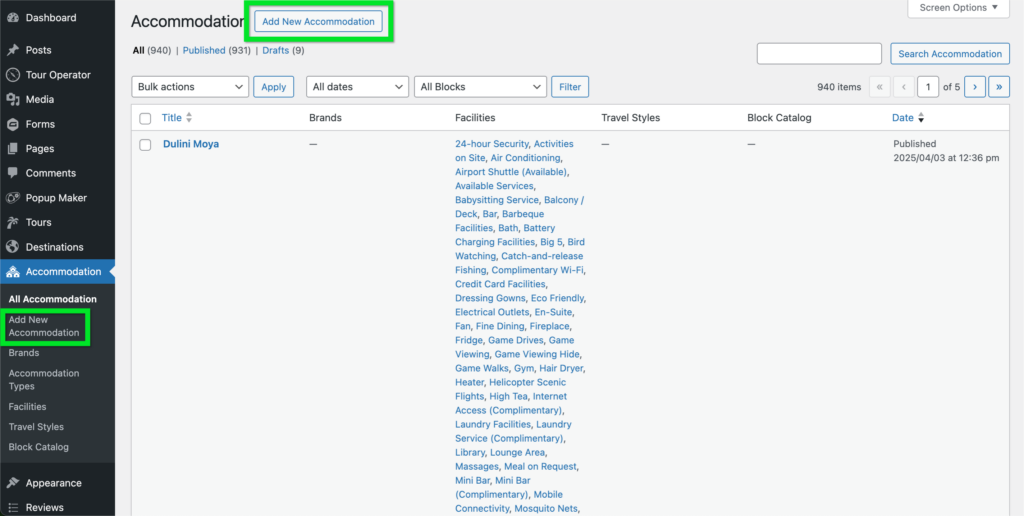
- Navigate to your WordPress Dashboard
- Hover over the Accommodation in the left column.
- Select the Add Accommodation.
OR - Click the Add New Accommodation button at the top.
Editing the main content #
- Title – Edit the Title of a accommodation by editing the field labelled Add title
- Content – Add information about the accommodation in the main content field.
- Featured Image – Set the Featured Image by clicking Set Featured Image in the top right.
- Excerpt – You can set an Excerpt for the accommodation by clicking the Add an excerpt… link. This will appear in the accommodation’s card on landing pages.
- Featured – If this is toggled, the accommodation will be Featured, and appear in Featured Accommodation sections of the site.
- Disable Single – If this is toggled, the single page will be disabled, this means that although the accommodation will appear on landing pages and searches, it will redirect to the home page when clicking on it.
Below is an empty accommodation, as well as a completed accommodation for your reference:


Configuring the accommodation #
Details and Custom Fields sections #

NOTE: If any field is left blank, it will not display on the front end of your accommodation.
In the Details section you can configure various details of your accommodation. These include:
- Included – Advise guests on what is included in the price of your accommodation.
- Not included – Advise clients what is not included in the price of your accommodation.
- Accommodation Experts – Select a team member to assign to the accommodation.
In the Custom Fields section in the right hand column you can configure important information for your accommodation that will display in their respective blocks on the front end. These include:
- Tagline – Set a tagline for your accommodation.
- Price – Set the price of your accommodation.
- Sale Price – Set the sale price of your accommodation.
- Price Type – The type of pricing for this accommodation. (e.g. per person per night).
- Single Supplement – Set the price for an individual taking your accommodation.
- Rating – Select the star rating for the accommodation (e.g., 3 stars, 5 stars).
- Rating Type – Choose the rating type (e.g., user reviews, official star ratings)..
- Best time to visit – The ideal months or season for visiting the accommodation.
- Spoken Languages – Select the languages commonly spoken by the staff.
- Friendly – Choose the types of visitors the accommodation is best suited for (e.g., family-friendly, pet-friendly).
- Special Interests – Special interests that the accommodation caters to, such as wildlife or adventure.
- Check-in Time – Enter the standard check-in time for the accommodation.
- Check-out Time – Enter the standard check-out time for the accommodation.
- Minimum Child Age – Set the minimum child age allowed by the accommodation.
In the Brands section in the right hand column you can assign a brand to the accommodation. Read the documentation on Editing Brands here for more information on how to set them up.
Under that, in the Accommodation Types section, you can assign accommodation types to the accommodation. Read the documentation on Editing Accommodation Types here for more information on how to set them up.
In the Facilities section under that you can add facilities present in your accommodation. Read the documentation on Editing Facilities here for more information on how to set them up.
In the Travel Styles section at the bottom of the right hand column you can assign travel styes to the tour/itinerary. Read the documentation on Editing Travel Styles here for more information on how to set them up.
Location and Media sections #

NOTE: If any field is left blank, it will not display on the front end of your accommodation.
In the Location section you can configure how the map displays for your accommodation.
- Address – Once you have added your Google Maps API key to the field in the Settings, you can enter an address here for the accommodation.
- Map Placeholder – Add a placeholder image for the map if no address or GPS data is available, or you are unable to add a Google Maps API key.
In the Media section you can add images and videos for your accommodation.
- Gallery – To add images to your accommodation that will display in the gallery section, click Add new image and either select or upload images.
- Videos – Add videos of your accommodation by filling in the relevant fields:
- Title – The title of the video
- Url – The url where the video is hosted
- Caption – The caption displayed with the video on the frontend.
- Alt Text – Alternative text for accessibility, describing the video for screen readers.
Rooms/Units section #

NOTE: If any field is left blank, it will not display on the front end of your accommodation.
In the Rooms/Units section you can configure what information will display about each room or unit in your accommodation.
- Unit Type – Select the type of unit (e.g., room, suite) from the dropdown.
- Unit Title – Enter the name or title of the unit (e.g., Deluxe Room, Family Suite).
- Unit Description – Provide a brief description of the unit’s features and amenities.
- Unit Price – Enter the price of the unit.
- Unit Images – Showcase the unit by adding images. The first image in the gallery will display as the featured image of that unit.
You can delete this room or unit by clicking the Remove button at the bottom of the entry, or by clicking the red X at the top left of the entry, next to the Title.

Related section #

NOTE: If any field is left blank, it will not display on the front end of your accommodation.
In the Related section you can connect accommodation, destinations, activities, specials and team members to your accommodation. These will display in their respective blocks on the front end.
- Related Posts – Select blog posts on your website that are related to your accommodation.
- Related Destinations – Select the destinations that your accommodation is associate with.
- Related Tours – Select tours that are connected to your accommodation.
- Activities – Select activities connected with your accommodation.
- Specials – Select specials connected with your accommodation.
- Teams – Assign team members to your accommodation.


